Audio description is an editorial decision, not a narration layer to bolt on after picture lock. When adding audio description to video, the challenge isn’t simply naming what appears on screen. It’s identifying which visual details viewers need to follow the story, then fitting concise narration into available pauses without masking dialogue, music or effects.
It’s understandable to be unsure what deserves a description, especially when a sequence is visually dense or the soundtrack leaves little room. Describe what adds essential context, not every action. The right approach depends on the programme, the pace of the edit and how much information can be communicated clearly.
This guide explains how to assess visual content, plan narration that fits the programme and integrate description into post-production. It also covers timing, synchronisation, audio balance and delivery checks, so the accessible version is prepared and quality-checked for its intended destination.
Key Takeaways
- Identify visual information that adds essential context, rather than narrating details already conveyed by dialogue or sound effects.
- Build a concise description script from a focused review of the picture, prioritising clarity and story-relevant details.
- Choose standard or extended audio description based on available pauses, programme pace and the amount of visual information viewers need.
- Plan adding audio description to video as part of the production workflow, from editorial review and scripting through audio integration and delivery preparation.
- Use a final playback checklist to assess description accuracy, timing, intelligibility, continuity and balance against the finished soundtrack.
Audio description for video: what it is and when needed
Audio description for video is concise narration that communicates meaningful visual information not conveyed by the programme’s existing audio. It can describe an important action, a change of scene, essential on-screen text or who is speaking when that isn’t clear from the soundtrack. It doesn’t need to narrate every shot. The aim is to supply the context viewers need to follow the content.
Start by considering what the soundtrack already tells the audience. Dialogue may explain a character’s intention, and a sound effect may make an action obvious, so repeating either adds little. But audio alone may not reveal a character’s expression, an important gesture or a visual detail that changes how a scene is understood. The overview of audio description and its purpose provides useful background, while production decisions depend on the specific programme.
Which viewers benefit from audio description?
Audio description is designed to make visual information accessible to blind and low-vision audiences. It can communicate events, relationships and details that would otherwise be available only through the picture. Access needs and preferences vary, so a description that supports one person may not provide the same experience for everyone.
Clear verbal context can also help other viewers, including people listening while their attention is elsewhere or who find visual information difficult to track. That broader usefulness doesn’t change the editorial priority: descriptions should give blind and low-vision audiences information they need to understand the programme, without cluttering its soundtrack.
Which visual details need to be described?
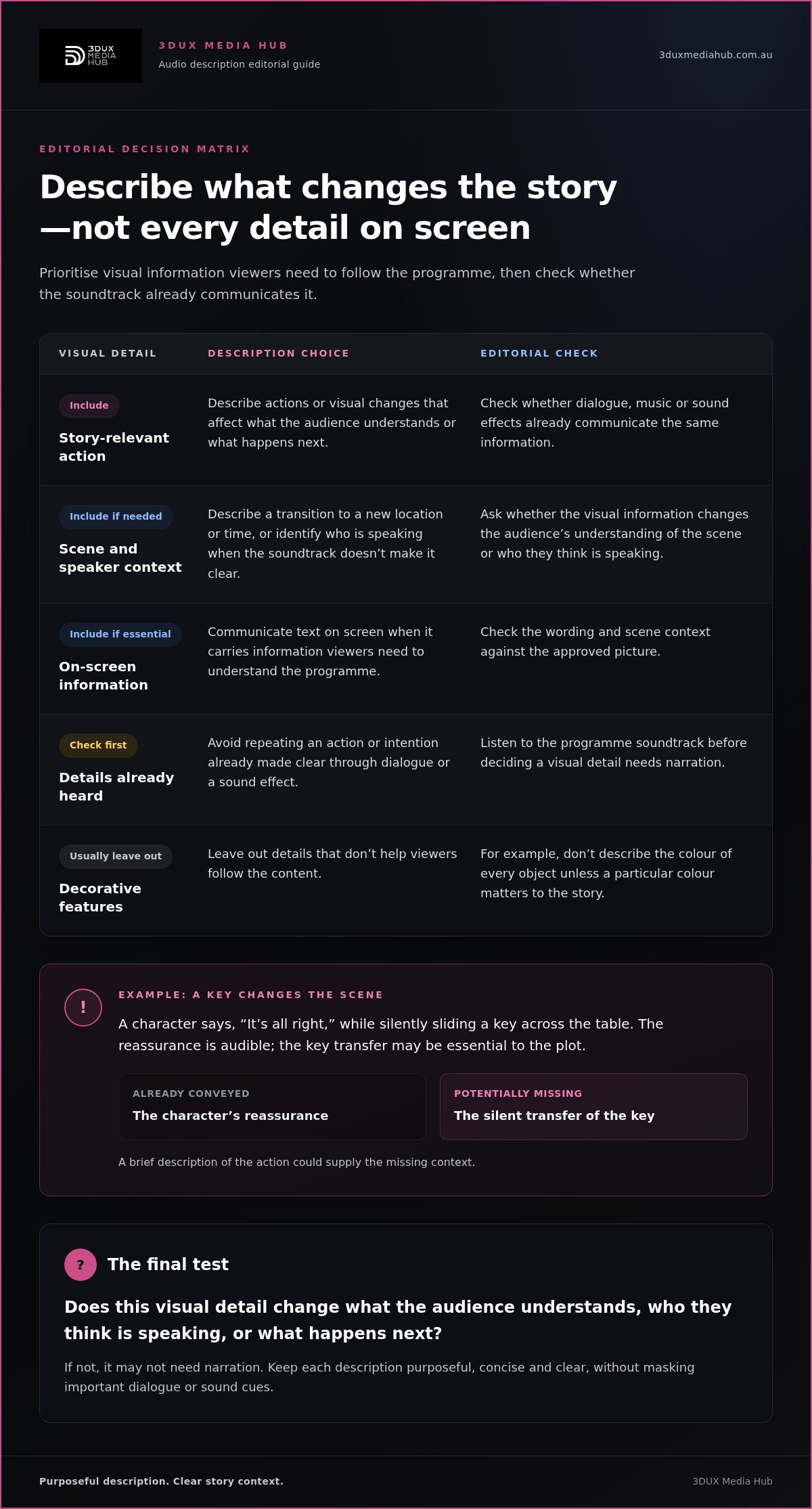
Prioritise information that affects comprehension. This may include a plot-relevant action, a transition to a new location or time, text that carries essential information, or visual speaker identification when dialogue doesn’t make it clear. Consider what viewers would miss if they couldn’t see the screen, then check whether the existing audio already supplies that information.
- Describe: actions, visual changes and on-screen information that affect the story or meaning.
- Check first: whether dialogue, music or sound effects already communicate the same detail.
- Usually leave out: decorative features that don’t help viewers follow the content.
For example, a character says, “It’s all right,” while silently sliding a key across the table to another person. The reassurance is audible, but the transfer of the key may be essential to the plot. A brief description of that action could supply the missing context. By contrast, describing the colour of every object in the room is unlikely to help unless a particular colour matters to the story.
As you review a programme, ask: does this visual detail change what the audience understands, who they think is speaking, or what happens next? If not, it may not need narration. This selective approach keeps descriptions purposeful and gives scripting and audio integration a clear editorial basis. For teams adding audio description to video, that judgement is more useful than trying to describe every visual moment.
How to write audio description that fits the video
A useful script starts with the finished picture and soundtrack, not a guess about what viewers might miss. Watch the programme with dialogue, music and effects intact. Note visual events that change the audience’s understanding, then identify moments where description can fit without covering important audio. This turns a broad viewing task into specific writing and timing decisions.
Analyse the video before drafting narration
Make a viewing log with timecodes, visual information and possible narration windows. Mark events that materially affect the story, then listen again: dialogue or a sound effect may already communicate the action. Flag moments where description would compete with speech, a lyric, a distinctive effect or a deliberate silence. For US-bound broadcast work, check the FCC Regulations on Audio Description separately from editorial scripting decisions.
Use the log to shape a first draft. Keep each entry focused on one idea, and note where it should begin and end. A practical sequence is:
- Review: Watch the full programme with its approved soundtrack.
- Mark: Record visual-only events and their timecodes.
- Prioritise: Rank details by how much they affect comprehension.
- Place: Match each description to a suitable pause or quieter moment.
- Read aloud: Check whether the wording fits the window at a natural pace.
Keep the description concise and objective
Describe what is visible using direct, specific language. State the action or change without guessing at a character’s thoughts or adding an interpretation the image doesn’t establish. Verify names, readable on-screen wording and scene context against the approved picture. If the edit changes, revisit affected lines and timecodes, as a script prepared for an earlier cut may no longer match the final master.
Concise doesn’t mean rushed. A shorter line is usually easier to place and follow. Remove details already supplied by dialogue or effects, and prioritise the information that gives the audience a clear understanding of what has happened. Don’t force narration into a moment where it would obscure a key line or sound cue. If no suitable pause exists, flag the issue for editorial review rather than masking important audio.
Example script, not a standard: At a quiet moment after a character says, “I’ll be back”, the picture shows them leaving a key on the table and walking out. If the key’s significance is clear from context, a concise line might be: “Mara leaves the key on the table and exits.” Use the name only if the programme establishes it. Otherwise, describe the visible action without identifying the character.
Read every line against the picture and soundtrack. Check that it describes the right event, fits the available space and doesn’t introduce information the scene hasn’t established. This is where disciplined media preparation matters: 3DUX Media Hub’s video and audio post-production workflow connects with the wider task of preparing and checking media assets for delivery.
Standard or extended audio description: choosing an approach
Standard audio description places concise narration into pauses already available in the programme’s soundtrack. Extended audio description provides more time by pausing the video when needed, then resuming playback after the additional description. The choice depends on how much visual information matters, how quickly the programme moves and whether picture pauses suit the viewing experience. Neither approach is right for every genre or delivery platform.
Start with the edit, not a preset rule. A dialogue-led scene may offer clear gaps for short descriptions, while a fast montage or information-heavy sequence may leave little room. Consider the rhythm and intent of the programme as well as the amount of narration needed. A pause that helps explain a complex diagram could disrupt a tense action scene.
| Approach | Suitable conditions | Production consideration |
|---|---|---|
| Standard audio description | Meaningful visual details can be conveyed in gaps between dialogue and other important audio. | Keep wording concise and check that narration doesn’t cover music, effects or narrative cues. |
| Extended audio description | Visual information is too dense to describe clearly within available pauses. | Additional narration time may require video playback to pause, affecting programme pace and flow. |
When description can fit into existing pauses
Standard description uses gaps between dialogue or other essential audio to communicate visual information. A quiet moment isn’t automatically available: music may carry emotion, an effect may signal an action, or a pause may be vital to the scene’s timing. Review each proposed gap against the full soundtrack and picture.
The trade-off is precision versus completeness. Tight wording can preserve the flow, but cutting too much may leave an important action unclear. Prioritise the detail that best explains what is happening, and don’t squeeze a line into a window if it would need to be rushed or obscure meaningful sound.
When extended description may be considered
Extended description is an option when important visual information can’t be fitted into the available pauses without compromising the description or soundtrack. The video pauses to create extra narration time, then continues. This can support dense visual sequences, but the interruption changes the viewing pace and may affect how the programme plays for the audience.
WCAG 2.1 Level AA addresses audio description for prerecorded video; its extended audio description criterion is at Level AAA. These are accessibility guideline levels, not a direction to use extended description for every programme. For teams adding audio description to video, assess the content, playback experience and intended delivery context together, then plan the approach around the actual edit.
A practical workflow for adding audio description to a video
Adding audio description to video is a production workflow: review the approved picture, identify and script essential descriptions, record and integrate narration, then check the finished version against delivery requirements. Treat creative approval and technical QC as distinct stages. The first confirms that the description is accurate and appropriate; the second verifies that the completed media asset is correctly prepared.
Use a controlled sequence so editorial decisions carry through to the delivered version:
- Lock the review picture. Confirm which approved edit the work is based on. Record version details so script notes and timecodes can be matched to the correct picture.
- Review and mark. Identify visual information that needs describing and note potential timing windows. Flag points where narration could conflict with dialogue, music or effects.
- Prepare and approve the script. Draft concise lines against the reviewed picture. Check names, actions and on-screen information, then review the script in context before recording.
- Select and record narration. Voice selection is a project-specific creative decision. Record against the approved picture and timed script, and capture any agreed revisions against the same version.
- Integrate and review the audio. Align narration with the intended visual events. Listen in context and assess intelligibility and balance against dialogue, music and effects.
- Complete QC and prepare delivery. Compare the accessible version with the approved picture and audio, then check its package against the intended format’s documented requirements.
Record and integrate the narration
Choose a voice that suits the programme’s tone and intended audience; this is a creative choice, not a fixed technical setting. Record the timed script against the approved picture so each line corresponds to the right action and fits its intended window. During integration, listen to the full mix, not narration in isolation. Check for missed or mistimed cues, unclear words and moments where description masks dialogue or meaningful sound.
Track alignment is especially important if the programme has multiple language versions or audio elements. A change to the picture or an audio conform can affect the position of descriptions, so review the final aligned version rather than relying on earlier references. This is closely related to film localisation and audio conforming, where audio elements must remain aligned with the relevant picture version.
Prepare the accessible version for delivery
Before packaging, identify the intended distribution format and consult its documented requirements for audio tracks and asset delivery. Keep audio-description assets clearly labelled in the delivery package, with version information that distinguishes them from other audio elements. Don’t assume the same package or track arrangement applies across platforms; check the requirements for the specific destination.
Encoding and asset preparation are part of the delivery chain, not a substitute for editorial review. Professional video encoding for distribution helps prepare media for its intended release, while QC checks whether the final files match the approved picture and audio. For encoding and media preparation as part of a distribution workflow, explore 3DUX Media Hub’s services.
Quality-check audio description and integrate it into media delivery
A description track is only useful if it matches the final picture, can be selected for playback and remains clear alongside the programme audio. Final quality control should cover both the audience experience and the delivered media package. Check the version intended for release, not just the narration file or an earlier edit.
Review the finished experience
Play the complete described version from beginning to end. Spot checks can catch local errors, but they won’t reveal every issue with continuity, pacing or how the description feels across a scene. Listen with the picture and full soundtrack, and confirm that the selected version plays correctly in its intended environment.
- Accuracy: Each line describes the correct action, speaker or on-screen information in the final picture.
- Timing: Narration starts and ends at the intended moments, without arriving too early or continuing after its visual reference.
- Intelligibility: Words are clear and understandable at normal playback, including names and important details.
- Continuity: Descriptions remain consistent across scenes and don’t conflict with changes in the edit.
- Mix: Narration is audible without obscuring dialogue, meaningful effects, music or deliberate pauses.
- Playback and package: The correct track is identifiable and selectable, and the delivered assets match the destination’s current documentation.
Check the moments around each description as well as the line itself. A narration cue may be clear in isolation but mask a sound that carries into the next shot. If a finding requires an editorial change, update the relevant picture reference, script and audio, then review the revised section in context. Blu-ray quality control for film distribution also centres on checking media against the approved release.
Plan the next production step
Document the approved picture version, script and time references, audio integration decisions, track labels and intended delivery format. Keep the approved mix and package requirements with the asset records, so later revisions or distribution versions can be checked against the right references. Confirm track naming, playback selection and platform-specific requirements against current delivery documentation rather than assuming one arrangement applies everywhere.
Accessibility preparation sits within a wider post-production workflow. 3DUX Media Hub’s video and audio post-production, encoding and quality-control services support the preparation of media assets for film and television distribution. This keeps audio description connected to the final master and supports clear version control and delivery checks across the package.
For a considered review of post-production and distribution requirements, discuss your media post-production workflow.
Build accessibility into your next release plan
Make audio description part of the release conversation early. Before the next edit or delivery milestone, record who approves the picture, how script and audio changes are tracked, and which version is intended for each destination. That gives editorial and post-production teams a shared reference as the programme moves towards its final master.
Adding audio description to video also sits within a broader media-preparation process. 3DUX Media Hub offers video and audio post-production, encoding and broadcast-quality QC for preparing assets for distribution. These services help keep the finished media aligned with the approved version and its delivery requirements.
Set a clear workflow for your next project, from picture approval through final asset checks. Discuss your media post-production workflow with 3DUX Media Hub and take the next step towards a well-prepared release.
Frequently Asked Questions
What is audio description in a video?
Audio description is spoken narration that gives viewers access to important information shown in the picture but not communicated by the soundtrack. It complements rather than replaces dialogue, music and effects. For example, if a character silently points to a map while another person speaks, a brief description can identify the gesture or the location indicated, provided that detail matters to understanding the scene.
When does a video need audio description?
A video may need audio description when visual-only information is essential to understanding it. Check whether viewers can follow key events without seeing actions, graphics or on-screen text. For instance, an instructional video might show a safety warning in a graphic while the speaker continues talking about another step. If the warning isn’t spoken or otherwise clear from audio, description may provide necessary context.
How do you add audio description to a video?
To add audio description to video, begin with the approved edit and note key visual details that aren’t clear from its soundtrack. Write concise narration against the picture, then review the wording and timing before recording. Integrate the narration with the programme audio and play the result in context. Finally, check that the intended playback setup makes the described version available and that the delivered file matches the approved edit.
Can audio description be added after a video is finished?
Yes, audio description can be added during post-production after the picture edit is complete. The finished soundtrack and edit determine how it can be fitted in. A dialogue-heavy scene may leave little room for narration, while a sequence with fewer audio cues may offer useful gaps. Review the final picture and soundtrack first, since changes to shot timing can affect both description wording and synchronisation.
What is the difference between standard and extended audio description?
Standard audio description places narration into pauses in the existing programme audio. Extended audio description creates additional time for narration by pausing the video and resuming it afterwards. The choice depends on whether the visual information can be described clearly without covering important audio, and whether a playback pause suits the programme. A fast-moving sequence and a static presentation may call for different editorial decisions.
Does YouTube support audio description?
Check YouTube’s current Help documentation before deciding how to deliver an audio-described video. Available upload and playback options can change, and the right setup depends on how viewers need to access the description. Confirm whether the intended approach supports a selectable description track or requires another format. Then test the published video in its intended viewing environment, rather than relying on assumptions about the player.
Does audio description need its own audio track?
Not always. Track configuration depends on the distribution format, the platform’s documented specifications and how the audience is meant to select the description. Some delivery workflows may use a separate track, while others may package audio differently. Confirm the required arrangement before preparing the final asset, label the audio clearly, and test that the intended version can be selected and heard in the target playback environment.