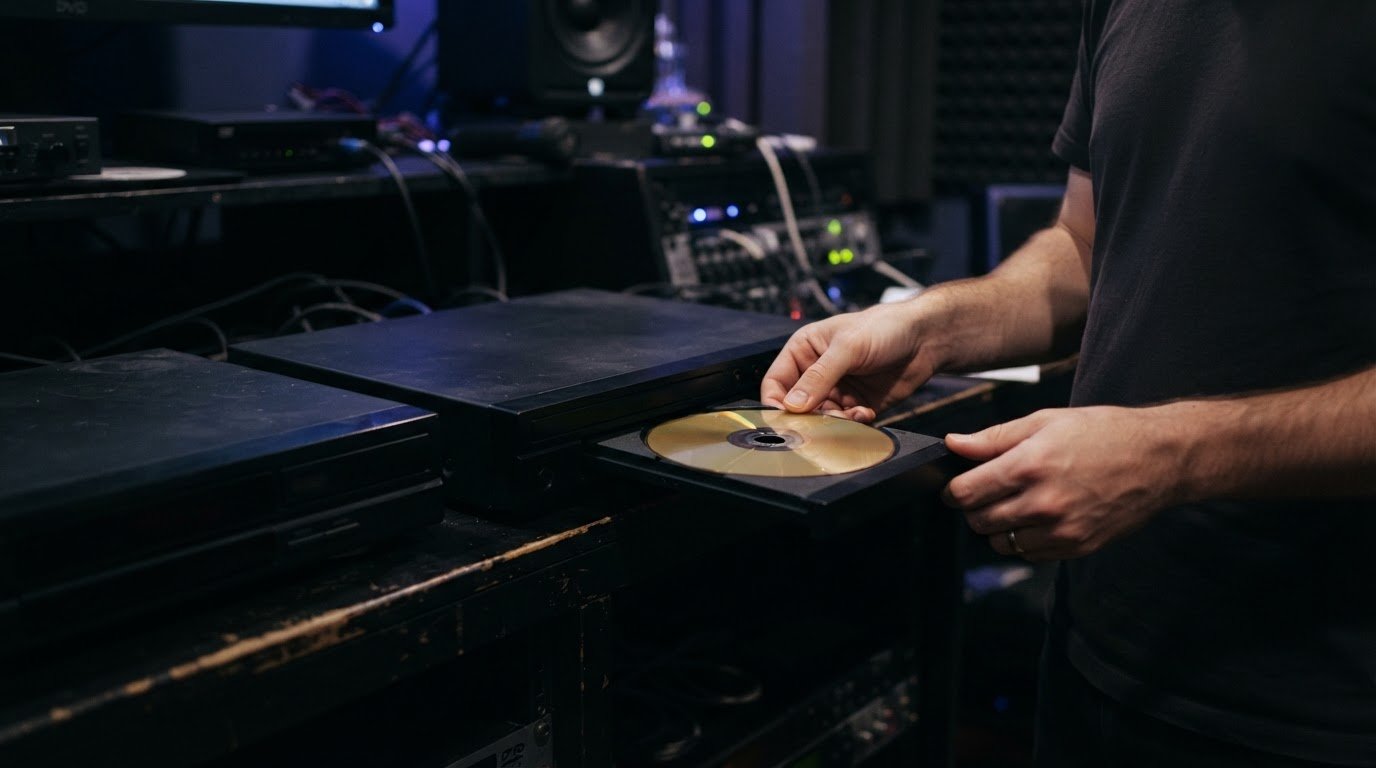
Maximum DVD-9 compatibility starts with matching the video standard to the intended players, preparing source files in a compatible format and managing the disc’s capacity. A DVD-9 can hold up to 8.4 GB of data; NTSC DVD video runs at 29.97 frames per second, while PAL runs at 25 frames per second. These choices shape how the finished disc plays, not just how it looks.
A disc that works on one player may behave differently on another. Common DVD authoring problems often stem from mismatched video settings, unsuitable source files, disc capacity or playback configuration. Start troubleshooting by pinpointing which part of the workflow is causing the issue.
This guide explains how video standards, source formats and available disc space affect DVD-9 compatibility, and which playback settings deserve attention. You’ll also learn what to consider when authoring and testing a disc, so you can make informed technical decisions before it reaches viewers.
Key Takeaways
- Match the DVD video standard and region settings to the players you need to support before authoring.
- Prepare source files in a format the authoring workflow can encode, and isolate troublesome timeline elements if an export fails.
- Plan the programme’s running time alongside menus and audio; the quality setting affects how much content fits on a DVD-9.
- If playback is choppy, troubleshoot the encode and burn settings, then test the finished disc on the players it is intended for.
NTSC, PAL, frame rates, and region compatibility
NTSC and PAL settings affect both the picture’s structure and the players that can display it. NTSC and PAL DVD video use different picture dimensions and frame rates. PAL DVD video uses 576i or 625 lines at 25 frames per second. Converting between them requires standards conversion; changing a setting alone can produce motion judder or an incorrectly framed image.
For the United States, NTSC is the relevant format to target for broad compatibility with standard DVD players. A PAL disc may play on some equipment, but playback depends on whether the player and display support that format. The DVD specification defines 8 region codes. Region coding controls where a disc is intended to play, so check both the video standard and region settings against the distribution markets.
Audio and video can drift out of sync if encoding or multiplexing gives their streams mismatched timing. Check the source timeline, audio duration and encoded output together. Progressive audio drift often indicates a timing mismatch.
Menus, chapters or navigation buttons can malfunction if menu links are incorrect or an edit creates an invalid structure. Test every button, chapter entry and return path in the authored disc, not just the menu preview.
Burned media adds another compatibility variable. A burn can fail or play unevenly because of media quality, drive condition or burn speed. Test the disc on multiple players, including the intended playback equipment, and avoid relying on a single computer drive. Before duplication or distribution, review the whole programme, menus, chapter jumps, audio sync and end-of-disc playback. A professional production workflow may test a master in 10-20 DVD players.
DVD-9 discs use two data layers, so authoring must account for the layer transition. Place the layer break at a suitable point between programme segments where possible, then test playback across that transition. Audio format compatibility also depends on whether the player supports the encoded audio stream; verify dialogue, music and menu audio on the target players, not only in software.
Accepted source video formats and file-size limits
A file extension alone doesn’t show whether a source will author successfully. DVD authoring software must support the source video and audio formats, so unsupported files need conversion before authoring. The same applies to mixed projects: a single unsupported clip, still image or audio asset can interrupt encoding, even when the rest of the timeline works.
DVD-Video compatibility depends on the encoded output, not just the original file type. Authoring converts supported source material into a disc-ready structure. Follow the selected software’s supported input and output settings for video and audio formats. Bitrate affects both quality and capacity: higher video data rates use more space, while lower rates can reduce picture detail, particularly in fast-moving or complex scenes.
If an export fails, save a separate project copy before troubleshooting. Remove half the timeline objects and retry the export. If it succeeds, the fault is likely among the removed items. Keep dividing that group until you isolate the asset, checking video, titles, still images and audio separately. For DVD or Blu-ray AVCHD projects, exporting the movie to MPEG before disc creation is another troubleshooting step.
Pixelation and compression artefacts are often more visible when the source is low quality or the encode is pushed to fit more content. Inspect the source, then preview the encoded output at full size. Compare fast movement, fine textures and dark scenes. If these areas break up, adjust the balance between encoding quality and running time. Changing the file extension won’t fix the image.
File-size limits depend on the disc’s usable capacity and the complete authored project, including menus and audio. Check the authoring application’s project estimate before building the final image. If you need to refine the encoding workflow, DVD-compatible video and audio encoding can help align source preparation with disc output.
DVD capacity and total play-time limits
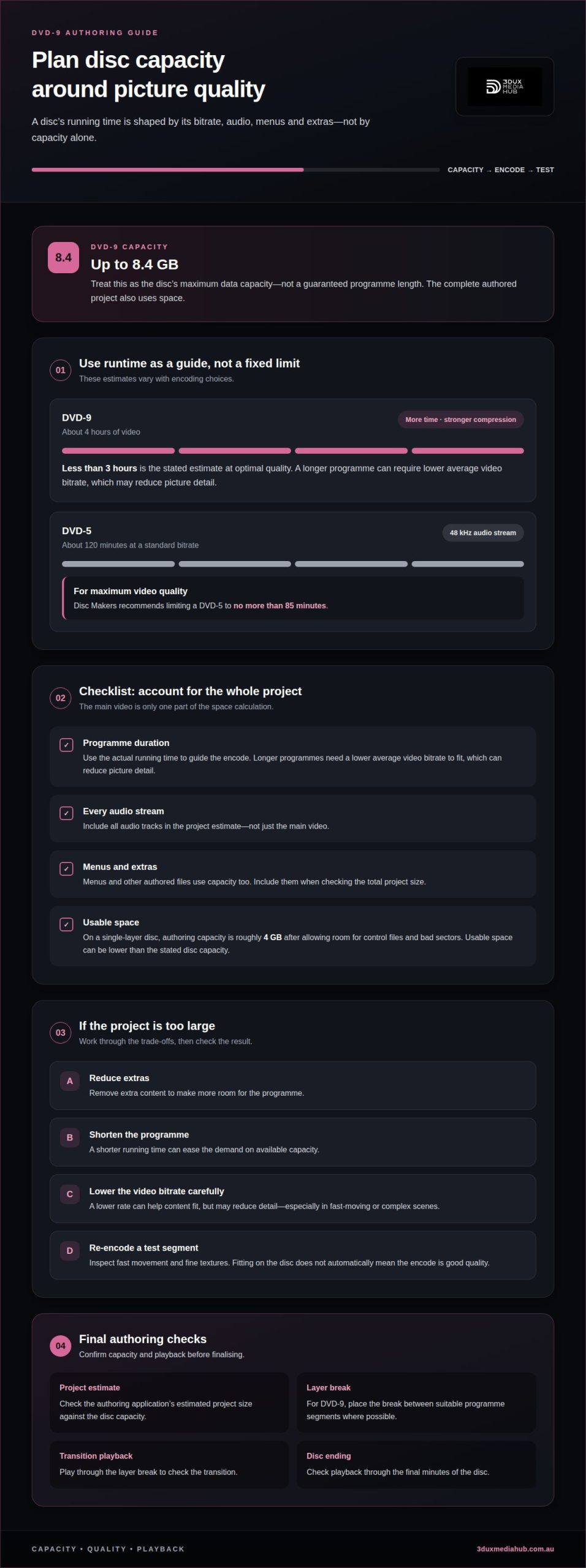
Disc formats differ in their available capacity, and the space must accommodate all authored content. Those figures describe disc capacity, not a fixed running-time limit. The encoded video bitrate, audio streams, menus and other authored files all use space. A longer programme therefore needs a lower average video bitrate, which can reduce picture detail.
Runtime estimates vary with encoding choices. A DVD-5 can hold about 120 minutes at a standard bitrate with a 48 kHz audio stream. For maximum video quality, Disc Makers recommends limiting a DVD-5 to no more than 85 minutes. A DVD-9 can hold about 4 hours of video, or less than 3 hours at optimal quality. These estimates are not interchangeable: the shorter runtime leaves more room for higher-quality video data.
Use the programme’s actual duration to guide the encode. A feature running close to 4 hours on DVD-9 may require stronger compression than a programme under 3 hours. Include every audio track, menu and extra in the project estimate, not just the main video. On a single-layer disc, authoring capacity is roughly 4 GB after allowing room for control files and bad sectors. The project’s usable space can therefore be lower than its stated disc capacity.
Before finalising, review the authoring software’s project-size estimate and compare it with the disc capacity. If the project is too large, consider reducing extras, shortening the programme or lowering the video bitrate. Re-encode a test segment and inspect detailed scenes, such as fast movement or fine textures. Fitting on the disc doesn’t automatically mean the encode is good quality.
For a DVD-9, check the layer-break placement as part of the authored image. Positioning it between suitable programme segments can make the transition less disruptive. Then play through the break and the final minutes of the disc. A successful project-size calculation confirms capacity, while playback confirms the authored programme works as intended.
Choppy playback on standard DVD players
Choppy playback can stem from the encoded video, the burn or the player’s interaction with the disc. A DVD that plays smoothly on a computer may still struggle in a standalone player. Test the same disc on different equipment to distinguish an authoring fault from a player-specific compatibility issue.
Burn settings matter. A troubleshooting report described playback problems on discs burned at 8x and 4x. Trying the slowest available burn setting can help identify whether the recording process contributes to stuttering. Also inspect the computer’s disc drive and test another disc brand. Inferior media can cause playback faults, while a drive problem can produce an unreliable burn.
Check the video encode next. For a DVD or Blu-ray AVCHD project, try exporting the movie to MPEG before creating the disc. If playback is still uneven, inspect the timeline for an image, video, title or audio object that may have disrupted movie encoding. Save a backup, then remove timeline elements in groups and retry the export to narrow down the fault.
Bitrate can affect playback and image quality. One troubleshooting account reported improved playback after lowering the bitrate and switching to constant rather than variable bitrate encoding. Treat this as a diagnostic option, not a universal setting: reducing bitrate can sacrifice detail, especially during fast movement. Compare the result on the intended players.
Use a controlled test sequence: play the opening, a fast-motion scene, chapter transitions, menu navigation and the final section. Record where the stutter occurs and whether it repeats across players. If only one player has trouble, compare another disc in that player. If several players fail at the same point, revisit that section’s encode or the disc burn. For a focused review of DVD playback issues, discuss your DVD playback problem.
3DUX Media Hub: 4K UHD Authoring
3DUX Media Hub provides 4K UHD Authoring, Blu-ray and DVD Authoring, Video and Audio Encoding, and Content Localisation. Turn to these services when a project needs a prepared source encoded and authored for its intended disc format or audience. Matching the workflow to the source material and delivery requirements helps address compatibility issues before the finished master is distributed.
For a DVD-9 project, the authoring stage brings the encoded programme and disc structure together. For a release that also needs UHD or Blu-ray versions, the relevant formats can be addressed within the same project workflow. Content Localisation can support releases prepared for different audiences, while the source and target formats guide encoding decisions.
Contact 3DUX Media Hub to discuss your authoring project.
Set your DVD project up for its next stage
Make compatibility a delivery requirement from the outset, not a final check. This turns common DVD authoring problems into practical production decisions: define the intended audience, document playback requirements and agree on how to assess the finished master. A clear brief gives the workflow a reference point when source material, menus or delivery needs change.
Before production moves ahead, gather the approved source files, final programme order, menu content and distribution requirements in one place. Note any versions needed for different audiences. These details keep creative and technical decisions aligned and give the authoring workflow a clear target.
If you’re preparing a DVD release or refining an existing master, take the next step with a focused project discussion. Contact 3DUX Media Hub about DVD authoring to outline your requirements and move the project towards a release-ready master.
Frequently Asked Questions
How do you create maximum compatibility with a DVD-9?
Define the target playback equipment and markets before finalising the disc master. Match the video standard and region settings to the intended audience, then verify the authored image rather than relying only on a software preview. Include representative older and newer standalone players in testing. Record any playback differences so you can refine delivery settings before distribution.
What are region codes?
Region codes identify which DVD players can play a disc, according to its intended market. A player may reject a disc if its region setting doesn’t match the disc’s code. For a release intended for multiple markets, set the region strategy during authoring and test playback with the relevant settings. Region coding is separate from the NTSC or PAL video standard.
What is anamorphic?
Anamorphic widescreen stores a wide picture in a DVD video frame as a vertically compressed image. During playback, a compatible display or player expands the picture to its intended widescreen proportions. This preserves more vertical picture detail than adding letterbox bars within the image. Check that the source, authoring flag and playback display agree, or the picture may appear stretched or incorrectly proportioned.
What is the difference between the NTSC and PAL Video standard?
NTSC and PAL are video standards with different frame structures and timing. NTSC DVD video uses 720×480 resolution at 29.97 frames per second; PAL uses 576i or 625 lines at 25 frames per second. Those differences affect motion and image structure. If a programme is intended for both standards, standards conversion must account for timing as well as picture dimensions to avoid awkward motion or framing.
What are the most common DVD authoring problems?
The most common DVD authoring problems tend to fall into three areas: the source or encode, the disc structure, and the physical burn. For example, an export may stop on a damaged timeline asset, while a menu can contain broken navigation links. A disc may also fail on particular hardware. Identifying the stage where the fault first appears helps narrow troubleshooting and avoids changing unrelated settings.
Why does a DVD fail to play on some players or computers?
A DVD may fail to play on a player or computer if its region setting, video format, disc structure or recorded media isn’t supported. Computers also need software that can read DVD-Video content. A data disc containing video files isn’t necessarily authored as a playable DVD. Check whether the disc contains a Video_TS folder, then test it in compatible DVD playback software and a standalone player.