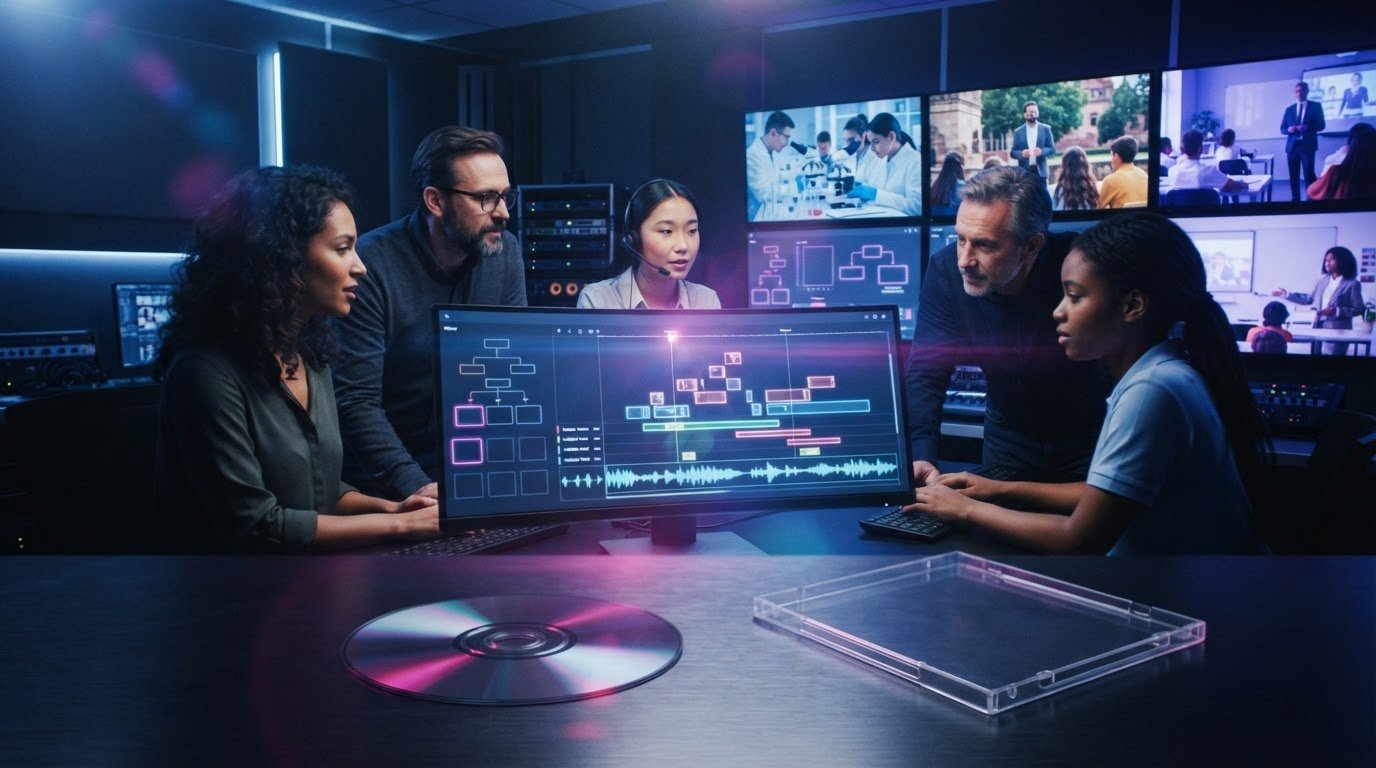
A well-authored educational Blu-ray does more than play a video: it organises lessons into a clear, navigable disc experience. Blu-ray authoring for educational content combines the video and audio with a menu structure, chapter points, and subtitle options, so learners can find and follow the material more easily. The result is a disc-ready presentation shaped around how the course is taught and used.
If you’re planning lesson order, accessibility and how viewers will navigate the content, those decisions belong in the authoring process. This article explains what Blu-ray authoring involves, how menus, chapters, audio and subtitles can support educational videos, and what to consider when outsourcing the work.
You’ll see how source files, course structure and the intended viewing experience shape the workflow, from encoding and menu design to quality control. This gives you a practical basis for planning an educational Blu-ray project and deciding where specialist authoring support fits.
Key Takeaways
- Outsourcing disc authoring can bring encoding, menu design and quality control into a coordinated workflow.
- Plan menu navigation and chapter points around how learners will use the material, rather than simply following the video timeline.
- Prepare audio and subtitle assets with the intended audience and learning context in mind.
- Match video settings to the target disc format and balance picture quality with the space available for the content.
- Assess authoring software by its format support, workflow requirements and ability to handle the custom features your educational release needs.
Benefits of outsourced disc authoring
Outsourced authoring brings the technical build and review into a defined workflow. An education team prepares the lesson assets and structure, while specialists assemble and test the disc image. The work can include encoding, navigation, subtitle integration and quality control. Each stage has a clear purpose: to make the material play as intended and help learners reach the right lesson without searching through one long video.
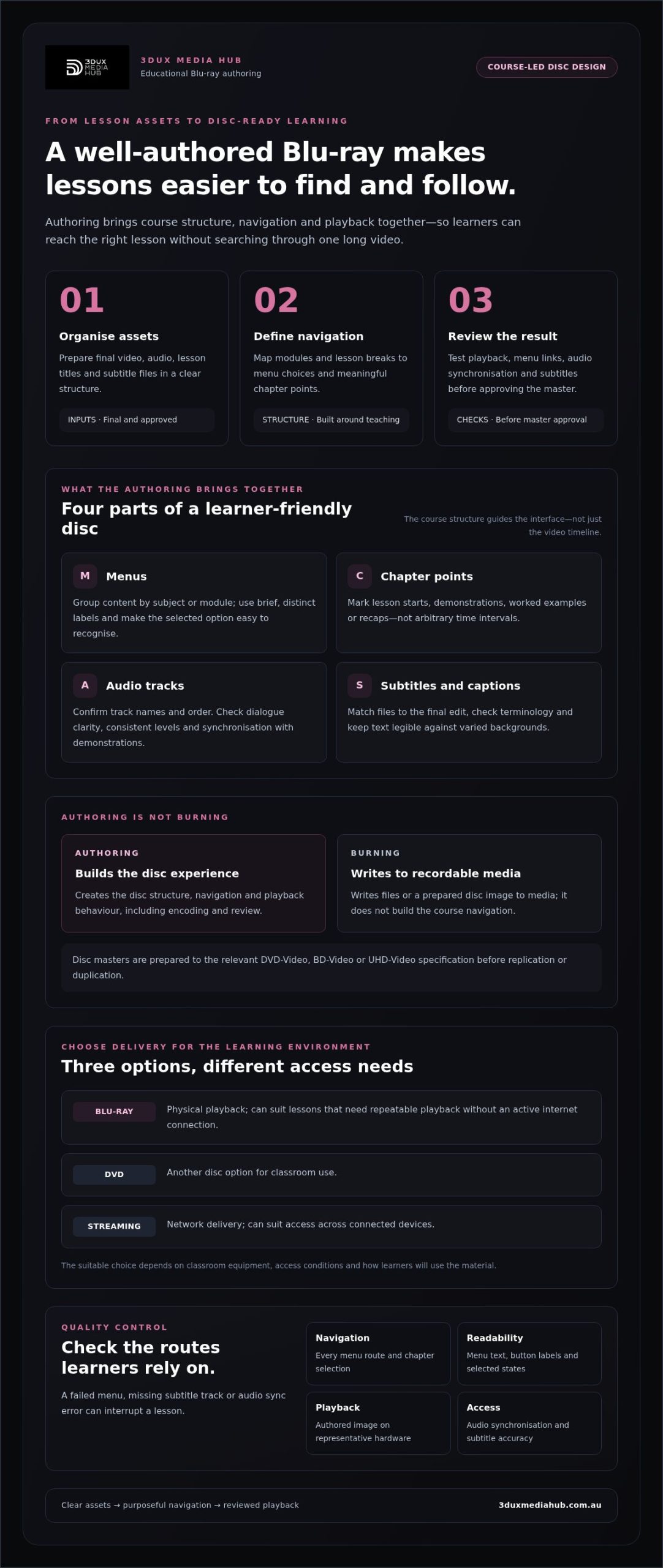
Authoring is different from burning. Burning writes files or a prepared disc image to recordable media. Authoring first builds the disc structure, navigation and playback behaviour. For example, a course with separate modules needs a menu and chapter points, not just a video file copied onto a disc. Disc masters are prepared according to DVD-Video, BD-Video or UHD-Video specifications before replication or duplication.
Outsourcing can help when an organisation needs a consistent workflow across many lessons or lacks in-house authoring tools and specialist capacity. The project team supplies approved video, audio, lesson names and subtitle files. The authoring team organises those assets into a playback structure, encodes them for the intended format and reviews the result. Keeping asset preparation and technical authoring separate makes changes easier to track.
For classroom use, Blu-ray offers physical playback, while DVD is another disc option and streaming relies on network delivery. A disc can suit lessons that need repeatable playback without an active internet connection. Streaming can suit access across connected devices. The right choice depends on classroom equipment, access conditions and how learners will use the material.
Quality control matters because a menu that fails, a missing subtitle track or an audio sync error can interrupt a lesson. Common risks include incorrect chapter links, unreadable menu text, incompatible encoding settings and playback differences between devices. Checks should cover every menu route and chapter selection, audio synchronisation, subtitles and playback of the authored image on representative hardware.
- Organise the source assets: provide final video, audio, lesson titles and subtitle files in a clear structure.
- Define the navigation: map modules and lesson breaks to menu choices and chapter points.
- Review the authored result: test playback, menu links, audio and subtitles before the master is approved.
For Blu-ray authoring for educational content, these steps connect course design to the disc’s technical structure. A well-planned handover gives the workflow clear inputs and makes review more focused. It also helps educators decide whether a disc, DVD or streaming delivery best suits their teaching environment.
Menu, chapter, audio, and subtitle customization
A course disc needs navigation that reflects its teaching structure. A main menu might group content by subject, with secondary menus listing lessons within each module. For example, a workplace safety course could separate induction, equipment use and incident response. Clear labels help learners find a topic without scanning a long video.
Chapter points should mark meaningful transitions, not arbitrary time intervals. Place them at lesson starts, demonstrations, worked examples or recap sections. Learners revisiting a practical task can then jump straight to the relevant demonstration. Supply a chapter list with lesson titles and timecodes, then check each point against the final video edit.
Menu design also affects usability. Motion menus add movement, while static menus keep the screen visually simple. Both can use course colours, subject icons and consistent typography. Keep button labels brief and distinct, and make the selected state easy to recognise. Test every menu route with a remote control, including return and resume behaviour.
Audio tracks can serve different teaching needs, such as a primary narration track and a separate language version. Confirm track names and order before authoring. Listen for clear dialogue, consistent levels and synchronisation with demonstrations. Subtitle files should match the final edit, use accurate terminology and remain legible against varied backgrounds. For example, a white caption over a bright slide may need a shaded background.
Accessibility best practice includes accurate captions for spoken content and meaningful sounds, readable text with strong contrast, and menu labels that clearly describe their destination. Keep narration clear and avoid relying on colour alone to distinguish options. These choices support learners who use captions, have low vision or need predictable navigation.
Custom artwork can carry a course’s visual identity across the opening menu, module screens and on-screen labels. Prepare consistent logos, colours, icons and lesson names. Disc labels and packaging artwork are separate assets. Align their titles and course details with the menu so educators can identify the right disc quickly. Check spelling and version details before approving production files.
- Map navigation: connect each module, lesson and recap to a menu choice or chapter point.
- Prepare accessibility assets: supply final captions or subtitles and review their accuracy against the locked edit.
- Coordinate visual materials: keep menu artwork, disc labelling and packaging details consistent.
A clear asset handover reduces avoidable revisions. Include the final video, audio tracks, subtitle files, chapter map and approved artwork. For a tailored menu structure, motion and static menu design can bring those elements into a consistent disc interface.
Blu-ray authoring for educational videos
Educational disc authoring turns a locked course edit into a structured playback experience. Plan rights, disc format and image quality together before approving the master.
Copyright, Licensing and Region Coding
For United States distribution, document permissions for every course asset: filmed material, music, photographs, diagrams and third-party graphics. Record the permitted uses, territory and distribution method for each item. Educational subject matter alone doesn’t establish that every asset is cleared for disc distribution.
Region coding is a playback setting, not a substitute for asset permissions. Decide which audience and playback territory the disc targets, then set the authoring configuration accordingly. A disc intended for a United States audience should be tested with the planned region setting and compatible playback equipment. Keep a rights log alongside the final video and subtitle files.
Before authoring, work through this handover:
- List the assets: identify music cues, images, quotations and footage that aren’t original course material.
- Record permissions: note the allowed uses and distribution scope for each asset.
- Set playback intent: specify the target territory and region configuration in the project brief.
- Review the master: check the authored disc against the approved asset list and intended playback setup.
This process gives the production team a clear record for each component. For example, a lecture may combine original demonstrations with licensed archival footage and a separately supplied music track. Record rights for each asset separately instead of assuming one permission covers the complete programme.
Video Formats, Resolutions and Bitrates
Choose the disc format before encoding, because format determines the compatible video settings and authoring path. UHD Blu-ray uses 3840×2160 resolution and 10-bit quantisation. UHD Blu-ray discs on the market have been described as averaging 40-60 Mbps, with 108 Mbps cited as the maximum bitrate.
These figures help frame an encoding decision, but they don’t set a universal target for every lesson. Motion, fine detail, source quality and available disc capacity all affect the right balance. A static lecture slide behaves differently from a close-up equipment demonstration with movement and texture. Review representative scenes before encoding the complete course.
Keep the source master intact, then create an encoded version for the selected disc format. Review picture detail, colour rendition and motion in the authored output, not only in the editing timeline. Even a clean source can show compression artefacts after encoding, particularly in gradients, fine text or fast movement.
For Blu-ray authoring for educational content, match the technical encode to the course’s visual demands. Check titles and diagrams at full-screen playback, since small labels can lose clarity. Confirm that the final settings suit the intended disc structure and that the authored image plays through each lesson without interruption.
Blu-ray authoring software availability and support
Blu-ray authoring software ranges from tools for assembling basic disc structures to professional workflows with detailed control. The right fit depends on the project: a single lecture with a simple menu differs from a course with multiple audio tracks, subtitles and branching navigation. Start by listing the features the finished disc must support.
Check the software’s operating-system compatibility, licensing terms and supported input and output formats before building the project. A tool that imports the video but can’t handle the required subtitle file or menu structure may create extra conversion work. Document whether lesson videos arrive as separate files, which audio tracks are included, and how chapter points are supplied.
Support matters when a project hits a technical snag. Look for practical documentation on importing assets, building menus, encoding and creating a disc image. Clear troubleshooting guidance can help identify whether a failed build comes from a malformed source file, an unsupported setting or a project-structure issue. A repeatable test project can reveal problems before the full course is assembled.
Software updates and technical support are separate considerations. Review how updates are delivered, which software versions the workflow depends on, and how project files can be reopened later. For an education provider revising a course, editable source projects can make replacing a lesson more manageable than rebuilding every menu from scratch. Keep project files, media assets and version notes together.
Before committing a complete course, run a small test build. Use a representative lesson, its intended audio, a subtitle file and a sample menu. Check that the software preserves the required playback behaviour and creates a reviewable image. This reveals workflow gaps early, such as missing fonts, incorrectly mapped buttons or subtitle timing that shifts after encoding.
Professional authoring workflows can reduce the need for an education team to maintain specialist tools and troubleshoot each build internally. They’re especially relevant when a project needs customised navigation, several language assets or a defined quality-control pass. In-house software may suit a course with straightforward playback and staff who already understand the workflow. The decision depends on project complexity, internal capability and how often discs need revision.
- List required features: note the video, menu, audio and subtitle needs before choosing a workflow.
- Test compatibility: use representative course assets in a sample build.
- Plan for revisions: retain project files and version notes alongside the approved media.
A software evaluation is most useful when it’s tied to an actual course brief. Record the intended menu structure, supplied file formats and review steps, then compare them with the authoring workflow. This makes software support a practical production decision, not just a feature checklist.
What video formats, resolutions, and bitrates does Blu-ray support?
Blu-ray settings depend on the disc format, source footage and intended playback. UHD Blu-ray uses 3840×2160 resolution and 10-bit quantisation. For educational video, choose settings that preserve important detail, such as small labels on equipment or text inside a recorded presentation.
UHD Blu-ray discs on the market have been described as averaging 40-60 Mbps, with 108 Mbps cited as the maximum bitrate. Treat these values as context for encoding decisions, not a target that every programme must reach. A lecture with a static presenter has different image demands from a moving laboratory demonstration.
Resolution describes image dimensions, while bitrate describes the data used to encode video over time. A higher bitrate can preserve more image detail, but it also uses more disc capacity. Source quality matters too. Upscaling a lower-resolution lecture doesn’t create detail that wasn’t captured in the original footage.
Before encoding, identify the master’s resolution, frame characteristics and visual complexity. Review scenes with fine text, gradients, rapid movement or detailed diagrams. A slide deck recorded from a computer may reveal soft lettering, while a close-up demonstration may show compression artefacts around moving objects. These checks help set priorities for the encode.
Use this workflow to assess settings:
- Inspect the source: note its resolution and identify scenes where fine detail matters.
- Set the target: select the intended Blu-ray format and compatible encoding profile.
- Encode a sample: include a title slide, a detailed diagram and a movement-heavy lesson.
- Review playback: examine text edges, colour transitions and motion on the authored output.
Then consider the complete disc structure. Video shares capacity with audio, subtitles, menus and other authored elements. A course with multiple language tracks or extensive supplemental material may need a different balance from a single-track lecture. The content’s duration and complexity also influence how available capacity is allocated.
Keep the original master separate from the encoded disc files. This gives the production workflow a clean source if lesson content changes or another delivery format is needed. Record the selected settings with the version notes, then compare the final output with the approved picture and audio references.
For projects spanning standard definition through 4K, consistent video and audio encoding can align source preparation with the selected disc format. Share the master files, target format and visual priorities to establish an encoding workflow for your course.
3DUX Media Hub: 4K UHD Authoring
3DUX Media Hub provides 4K UHD Authoring, Blu-ray and DVD Authoring, and Video and Audio Encoding for educational releases. Turn to its authoring services when course materials need a disc-ready structure, or when the source files require encoding for the intended format.
For a course prepared for different audiences, Content Localisation can support adapted versions. Share the approved video, audio, subtitles and course structure so the authoring workflow can align the technical build with the learning material. The right combination depends on the formats and deliverables your project needs.
To discuss Blu-ray or UHD authoring for your educational video, contact 3DUX Media Hub.
Shape your educational release around its learners
The next step is to turn your course plan into a clear technical brief. Identify the intended audience, playback setting, lesson structure and approved media assets. These choices help define how Blu-ray authoring for educational content can support the way learners access and revisit each topic.
3DUX Media Hub offers 4K UHD Authoring, Blu-ray and DVD Authoring, and Video and Audio Encoding. These services can support projects moving from prepared course materials to an authored disc. A focused brief gives the production workflow a practical starting point, without losing sight of the learning experience.
If your educational video is ready for its next production stage, contact 3DUX Media Hub to discuss the authoring requirements. A clear plan can help bring your course content to learners in a format built for its purpose.
Frequently Asked Questions
What is Blu-ray authoring?
Blu-ray authoring prepares video, audio and navigation as a structured Blu-ray disc project. It organises content into a format a compatible player can interpret, rather than simply copying a video file. For example, a course can have a main menu, selectable lessons and subtitle tracks. The authored project is then prepared for playback testing and disc writing.
What is Blu-ray authoring for educational content?
Blu-ray authoring for educational content adapts course material into a disc experience shaped around learning activities. A biology course, for instance, might group lessons by topic and include separate demonstrations or review segments. This structure can help learners return to a specific concept without replaying an entire programme. Plan the lesson sequence and viewing needs first, then map the video and supporting assets to the disc structure.
What software is best for authoring educational Blu-ray discs?
The best software depends on the disc structure, source assets and required deliverables. A basic project may need straightforward menu and chapter tools, while a complex release may call for professional authoring controls and technical support. Scenarist and BluPrint are professional authoring software options used in this field. Compare how a workflow handles your lesson files, menus and subtitles by building and reviewing a representative sample.
How do you create menus, chapters, subtitles, and quizzes for an educational Blu-ray?
Start with a lesson map, then match each module to a menu choice and each key transition to a chapter point. Import subtitles that match the final edit and check their timing against dialogue and on-screen terminology. For quizzes, structure questions as dedicated segments, with answer or explanation segments learners can select through navigation. Test each route with a remote control so learners can move between lessons and review material reliably.
What are the steps to author, test, and burn an educational Blu-ray disc?
First, organise the approved video, audio, subtitle and artwork assets. Next, build the menu and chapter structure, then encode and author the project for the intended disc format. Create a disc image and test menu navigation, lesson playback, subtitles and audio synchronisation. After correcting any issues, write the approved image to recordable media and play it on the equipment planned for classroom use.