What if the fault isn’t the codec you keep changing, but a mismatch at an earlier hand-off? A completed encode can still show colour shifts, stutter, playback failure or incorrect technical properties. Avoiding common video encoding errors starts with tracing the fault to its source, settings, process or output, rather than relying on trial and error.
It’s frustrating when a file appears finished but fails in a particular playback environment or misses the delivery brief. Repeatedly adjusting bitrate, profile or colour settings can waste time and put the master at risk. Check each stage in turn to narrow down the cause and choose a targeted correction.
This guide explains how to inspect source media, encoding parameters, processing logs and final outputs, then verify playback and delivery requirements. It also covers timestamps, muxing and metadata, which can cause problems even when the encode itself seems sound. A repeatable QC process can catch faults earlier and help you deliver a technically consistent file or master. For complex releases, connect encoding and broadcast-quality QC rather than treating them as isolated fixes.
Key Takeaways
- Use visible symptoms such as failed exports, playback issues, audio-video mismatch and visual artefacts to narrow down where an encoding fault may have started.
- Check source, codec and settings, processing, authoring and output separately instead of treating every fault as an encoder problem.
- For avoiding common video encoding errors, follow observable evidence and make one targeted diagnostic change at a time rather than adjusting settings at random.
- Build a preflight and final QC sequence around the delivery requirements, checking the source before encoding and the rendered file afterwards.
- For complex releases, connect encoding with authoring, standards conversion and broadcast-quality QC to support consistent delivery.
How to recognise common video encoding errors before delivery
An encoding error is an unintended defect introduced or exposed as video is converted into a delivery file. It’s different from a creative choice: a deliberate colour grade or motion effect may be a matter of taste, while a file that stops part-way through, loses sync or displays corrupted frames needs technical investigation. The visible symptom is a starting point, not a diagnosis. A failed export, for example, may relate to the source, settings, processing or another workflow stage.
Which symptoms point to an encoding problem?
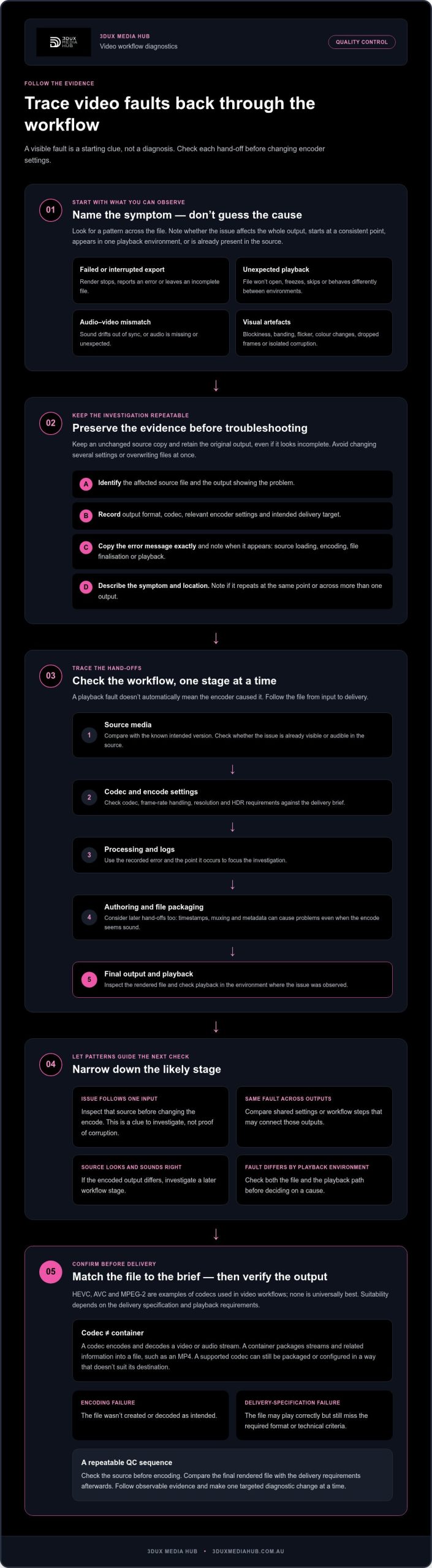
Look for patterns across the affected file, not just one unusual frame. Symptoms can include:
- Failed or interrupted exports: the render stops, reports an error or produces an incomplete file. Record where it happens, but don’t assume the encoder is the cause.
- Unexpected playback: the output may refuse to open, freeze, skip or behave differently in different playback environments. Check the file and playback path before settling on a cause.
- Audio-video mismatch: speech or other audio may drift out of sync with the picture, or the output may contain missing or unexpected audio.
- Visual artefacts: look for blockiness, banding, flicker, colour changes, dropped frames or isolated corruption. Compression uses picture types such as I-frames, P-frames and B-frames; the Video compression picture types overview explains how these differ.
Separate what you can observe from what you can confirm. Note whether the problem affects the whole file, begins at a consistent point, appears in one playback environment or is visible in the source too. These clues focus the next check without turning a symptom into a guess about its cause.
An encoding failure means the file wasn’t created or decoded as intended; a delivery-specification failure means it may play correctly but doesn’t meet the required format or technical criteria.
What should you record before troubleshooting?
Start with a clean record. Preserve an unchanged copy of the source media so you can compare it with the output and rule out changes made during troubleshooting. Capture the details that make the issue repeatable:
- Identify the affected source file and the specific output that shows the problem.
- Note the output format, codec and relevant encoder settings, along with the intended delivery target.
- Copy the error message exactly. Record when it appears, such as during source loading, encoding, file finalisation or playback.
- Describe the symptom and where it occurs. If possible, note whether it repeats at the same point or across more than one output.
Keep the original output too, even if it appears incomplete. Changing several settings or overwriting files at once can obscure useful evidence. A disciplined record supports avoiding common video encoding errors by making each investigation traceable and each test easier to compare.
Where video encoding errors begin: source, settings or workflow
A playback fault doesn’t automatically mean the encoder caused it. The issue may start in the source media, arise from a codec mismatch, emerge during processing, or appear later in authoring or the final output. Trace the file through each hand-off. If the same fault appears in several outputs, investigate shared settings or workflow steps. If it follows one input, inspect that source before changing the encode.
Keep two terms separate. A codec encodes and decodes the video or audio stream. A container packages streams and related information into a file, such as an MP4. A file can use a supported codec and still be packaged or configured in a way that doesn’t suit its playback or delivery target.
How can the source file contribute to an encoding fault?
Compare the affected source with its known intended version before adjusting encoder settings. Check whether the problem is already visible or audible in the source, and whether other inputs show the same symptom under the same workflow. If one source consistently produces an issue, investigate that input. This is evidence to follow, not proof of corruption.
Note where the symptom first appears. If the source looks and sounds right but an encoded output doesn’t, the fault may have entered later. If the issue appears in multiple outputs made from the same source, compare their processing and settings. This pattern-based approach helps isolate the stage without mistaking correlation for a confirmed cause.
How can settings and hand-offs create mismatches?
Review the delivery brief alongside the encode. Check the selected codec, frame-rate handling, resolution and HDR requirements against the intended destination. HEVC, AVC and MPEG-2 are examples of codecs used in video workflows, but none is universally best. Suitability depends on the delivery specification and playback requirements.
A file may encode and play correctly yet still be unsuitable for delivery. The output format must align with its delivery specification, not simply produce a playable file. Confirm requirements before encoding, then verify that the final output matches them. Don’t assume a technically valid encode meets every destination’s expectations.
Hand-offs are another potential fault point. A brief may omit a requirement, a settings change may not reach the person authoring the final package, or the approved source version may be unclear. Keep the source, encode settings, delivery requirements and authoring instructions aligned, and record changes between stages. This is particularly useful when an output passes through several teams or tools.
For complex releases, connected video encoding and broadcast-quality QC can keep requirements in view across encoding and authoring. Check each hand-off rather than treating the final file as the only place to look.
How to diagnose encoding errors without changing settings at random
Start with evidence, not presets. Match the symptom to a first check, then choose a next action that tests one possible cause. These checks are diagnostic, not guaranteed fixes: a failed export or playback fault can have more than one explanation. Record what you observe before making a change so you can tell whether the test altered the result.
Symptom: the export stops or fails. First check: note where the failure occurs and whether the source plays through that point. Next action: compare the same section in a known-good source or output, then repeat a controlled test if appropriate.
Symptom: a visual fault appears in one section. First check: compare that exact section with the source and another output, if available. Next action: establish whether the fault is already present or appears only after encoding.
Symptom: the whole file behaves unexpectedly. First check: compare the output’s documented settings with the approved delivery requirements. Next action: test the relevant setting or output stage individually, without changing unrelated parameters.
Symptom: the encoded file appears sound, but the delivered version does not. First check: inspect the file at the next hand-off, such as authoring or standards conversion. Next action: compare the packaged output and its requirements with the approved encode.
Which checks help isolate a failed encode?
Compare like with like. Check the affected output against its source and, where available, a known-good version made from the same material. Note whether the fault recurs at the same timecode, appears throughout the file or changes between attempts. A repeatable fault at one point is useful evidence, but it doesn’t identify the cause on its own.
If you run a test, use documented settings and preserve the original output. Change one variable at a time, then record the setting, result and any difference in the symptom. If you adjust the codec, frame-rate handling and bitrate together, you won’t know which change mattered. Change one variable, compare the result, and keep a record before testing the next.
When should you investigate authoring or delivery instead?
If the encoded file plays and appears consistent with its intended properties, move the investigation downstream. Check whether authoring, packaging or standards conversion introduced a mismatch, and compare each stage’s output against the delivery brief. A correct encode can still become unsuitable after a hand-off if the next stage uses different requirements.
For delivery workflows involving format or playback-standard changes, the broadcast standards conversion guide provides related context. This stage-by-stage approach helps distinguish an encode fault from a later delivery issue, instead of repeatedly re-encoding a file that may already be sound.
A repeatable checklist for preventing common video encoding errors
A reliable release process separates pre-encode checks from final quality control. The first confirms that the inputs and settings are ready; the second verifies the output against the project requirements. Keep a record at each stage. That makes it easier to trace changes between versions and repeat an approved workflow without relying on memory.
What belongs in a pre-encode check?
Before processing, use the project brief as your reference. Confirm the intended deliverable and its specified codec, HDR profile and audio requirements. Review the source assets, check that you have the correct versions, and note unresolved technical questions before they become downstream problems. If the workflow calls for a test encode, assess it against the same brief before proceeding to the full output.
What should final quality control cover?
QC should check the actual encoded output, not just the settings used to create it. Compare it with the agreed technical and viewing requirements. Review relevant video and audio elements, then assess playback in a way that suits the intended deliverable. Record any findings, make targeted corrections and check the revised output against those same requirements.
Adapt this sequence to your project specification. It doesn’t replace destination-specific requirements; it provides a repeatable framework for applying them consistently.
- Before encoding: confirm the delivery target and capture its required format, codec, HDR profile and audio criteria in the job record.
- Before encoding: verify the source version and review it for known picture or audio issues relevant to the deliverable.
- Before encoding: record the approved settings and run a controlled test encode where the workflow requires one.
- After encoding: check that the output matches the agreed technical requirements, then review picture, sound and playback for the intended use.
- After QC: document results, note corrective changes and verify the revised output against the same specification.
How can teams reduce repeat faults across versions?
Maintain a clear record of source versions, approved settings and output versions. If a requirement changes, update the job record and communicate the change at each production hand-off, including authoring or standards conversion where relevant. This avoids a common version-control trap: one stage working from an earlier brief while another follows the latest revision.
For broader mastering context, a professional video encoding services guide can help connect encode decisions with the wider delivery workflow. A repeatable checklist makes avoiding common video encoding errors a controlled process: establish the requirements, verify the source, document the settings and check the finished file. For a release that needs structured encoding and QC across connected stages, discuss your video encoding and QC requirements.
When professional encoding and QC can strengthen a release workflow
Internal checks can be sufficient when the delivery target is clear, the workflow is familiar and the team can verify the final file against its requirements. Specialist support can be valuable when a release involves multiple deliverables, HDR profiles, authoring or standards conversion, or when a fault could affect a high-stakes delivery. The benefit is a connected process: encoding, authoring and QC are considered together, rather than treated as separate fixes.
What can an integrated encoding and authoring workflow address?
For physical-media deliverables, encoding prepares the video and audio streams, while authoring assembles those assets into the intended disc structure. A mismatch between the encode and the authoring requirements can surface late if stages are planned in isolation. 3DUX Media Hub provides encoding and professional authoring, with support for Dolby Vision, HDR10+ and HDR10. Secure digital delivery of BD-CMF / Cutting Master Format is also available in the workflow.
Encoding capability should match the project, not a universal idea of the “best” codec. 3DUX Media Hub works with multi-pass HEVC, AVC and MPEG-2 encoding at maximum stable bitrates. The appropriate option depends on the delivery requirements and intended use. Aligning those decisions with authoring early helps keep the release workflow coherent.
What does professional QC add to the process?
Broadcast-quality QC provides a structured review of the intended deliverable against its technical and viewing requirements. It complements the project checklist by checking the output after encoding and, where applicable, authoring. QC helps identify issues for investigation; it doesn’t promise an error-free result. For disc-specific considerations, the 2026 Blu-ray quality control guide offers further detail.
Connected review matters because an encode that appears sound may still need assessment after authoring or another delivery-stage hand-off. 3DUX Media Hub brings encoding, authoring, standards conversion and QC together across film and television delivery workflows, supporting clear checks at each stage.
How can a distributor take the next step?
Before planning a release, organise the approved source assets and latest delivery requirements. Include any specified codec, HDR profile, audio criteria and authoring needs, plus notes on previous versions or known issues. This gives the workflow a clear starting point and helps keep decisions traceable as the project moves through its stages.
- Identify the approved source and intended deliverables.
- Gather the current technical specification and any relevant version notes.
- Map the required encoding, authoring, standards conversion and QC stages.
For complex releases, avoiding common video encoding errors means treating QC as part of the workflow, not just a last-minute check. Discuss your encoding and delivery requirements with 3DUX Media Hub to plan a project-focused approach.
Make your next delivery workflow more deliberate
Set up each release with a clear delivery brief and a record of approved source versions, settings and changes. That gives everyone involved a shared reference as the project moves from encode to final delivery, and makes future versions easier to manage. It’s a practical foundation for avoiding common video encoding errors without relying on last-minute fixes.
For complex film and television releases, technical support can help connect decisions across the workflow. 3DUX Media Hub brings over 20 years of product-to-market delivery experience, multi-pass HEVC, AVC and MPEG-2 encoding at maximum stable bitrates, and broadcast-quality QC alongside authoring and standards conversion.
Bring your source assets and delivery requirements together, then plan the right checks for your project. Discuss your encoding and delivery requirements with 3DUX Media Hub. A disciplined process gives your team a stronger starting point for the next release.
Frequently Asked Questions
Why does a video encode fail at the same point each time?
A repeatable failure point is useful evidence, but it doesn’t identify the cause on its own. Compare that section with the source and note whether it contains a cut, transition, unusual picture content or audio change. Preserve the exact error message and test with the same documented settings before changing anything. For avoiding common video encoding errors, treat each repeat as a clue to investigate, not proof that a particular setting is wrong.
Can changing a file extension fix a video encoding error?
Usually not. Renaming a file from one extension to another changes its label, not the encoded streams or how they’re packaged. For example, changing a filename to end in “.mp4” doesn’t convert the video into an MP4-compatible structure. Identify the actual container and codec, then compare them with the delivery requirement. If they differ, the right action depends on which part of the file needs conversion.
Why can an encoded video play correctly but still fail delivery checks?
A file playing in one application only shows that the application can read it. Delivery checks may assess other properties, such as the specified container, stream details, HDR profile or audio configuration. A file can therefore appear normal during a viewing check and still be unsuitable for its destination. Use the delivery specification as the acceptance reference, and verify the relevant technical properties rather than relying on playback alone.
Does re-encoding a video reduce its quality?
It can, particularly if the new encode applies additional compression, but the effect depends on the source and chosen settings. Each re-encode creates another version that should be assessed, not assumed equivalent to the original. Keep the source and current master unchanged while testing. Compare a representative section with the original at the intended viewing conditions before deciding whether a revised encode is suitable to replace the existing file.
Can an encoding error be caused by the video rather than the encoder?
Yes, the source is one possible cause, though a visible defect alone doesn’t establish that the source is damaged. Check whether the same defect appears in the original at the same point and whether it follows that input in a controlled test. If the source looks clean, investigate later stages too. A fault that first appears after authoring, packaging or conversion may not originate in the encoder.
What information should I provide when reporting a video encoding problem?
Provide enough detail for someone else to reproduce the situation: the delivery target, source and output identifiers, encoder settings, exact error text and the point in the process where it occurs. Add a short description of the observed result, such as whether playback stops or a picture defect appears at a particular timecode. Note tests already performed and retain the original files so the investigation can start from a clear baseline.