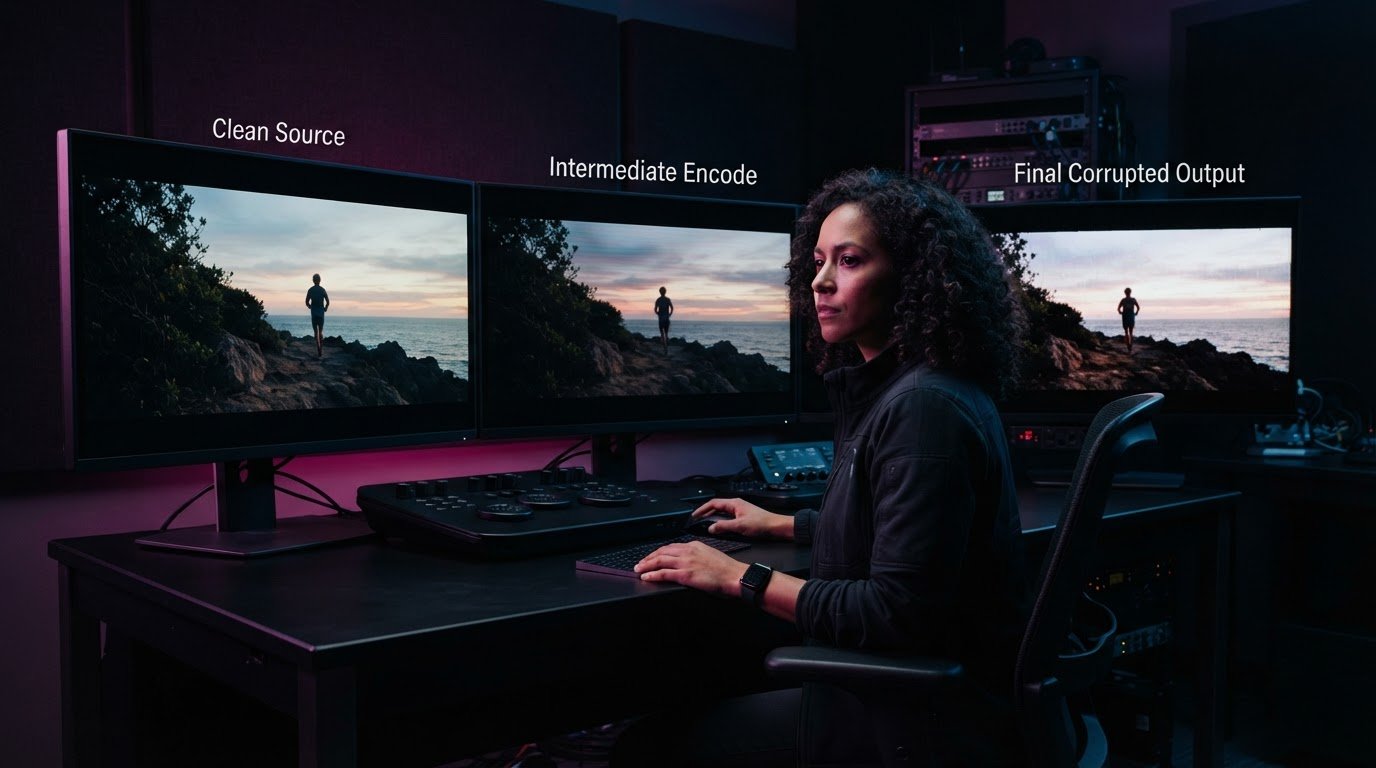
The encode may not be the culprit. When a blocky edge, banded gradient or smeared patch appears, the defect could already be in the source, have been introduced during processing or become more visible in the final encode. Dealing with video encoding artifacts starts with tracing the problem, not reaching for a sharper filter or higher bitrate.
It’s frustrating when a file looks clean in one scene, then falls apart in fast motion or a smooth sky. Similar-looking artefacts can have different causes, and an aggressive fix can soften detail or create ringing, noise and other defects. Compare the same frames across the source, intermediate renders and encoded output, then review playback under conditions suited to the intended delivery.
This guide explains how to classify common defects, trace where they enter the workflow and choose a targeted correction with its trade-offs in view. You’ll also learn how to test difficult scenes and gradients, prevent avoidable issues in future masters, and use technical QC to review a consistent file for its distribution path.
Key Takeaways
- Start dealing with video encoding artifacts by checking whether the defect is present in the source or appears later in the workflow.
- Compare matching timestamps across source, mezzanine and delivery files to narrow down where a defect is introduced.
- Match the correction to the visible symptom, then test its impact before applying it across the full programme.
- Check gradients, fine detail, motion, edges and shadows to catch defects that may not appear in easier scenes.
- When issues persist, connected encoding, post-production and broadcast-quality QC can help prepare a more consistent distribution master.
What video encoding artefacts look like, and why the distinction matters
A visible defect is a clue, not a diagnosis. An encoding artefact is an unwanted visual irregularity introduced or made more noticeable during processing or compression. But a defect in the delivery file may have started in the source or emerged during an earlier step, such as sharpening, resampling or standards conversion. Identify where it enters the workflow before changing settings. Otherwise, a correction aimed at the wrong stage can soften detail or create another problem.
Similar-looking symptoms can have different causes. Compression may exaggerate existing noise or texture, while processing can create edge distortion before encoding begins. For a broader overview of compression artefacts, including patterns associated with lossy compression, use the visible symptom as a starting point, then compare the affected frame with earlier versions.
Common video artefacts: blocking, banding and ringing
Blocking appears as visible boundaries between square regions, often in flat areas or during movement. Banding creates steps across a smooth gradient, such as a sky fading from blue to pale grey or a shadow transitioning across a wall. Ringing and mosquito noise appear as distracting outlines or flickering patterns around high-contrast detail, such as lettering against a dark background. Note whether the defect follows an edge, a gradient or a moving region. That pattern helps narrow down what to investigate.
Artefact or source characteristic?
Film grain and image texture may be intentional parts of the picture, not defects to remove. Grain is a source characteristic when it belongs to the image; compression noise is an artefact when encoding disrupts or exaggerates that texture. Avoid treating every speckle or uneven patch as unwanted. Broad noise that changes between encodes, or block-like patterns gathering around detail, may point to processing or compression instead.
Compare the same frame at the same timestamp in the source, any intermediate file and the final encode. If the irregularity is already present in the source, changing the encode may not remove it cleanly. If it first appears in an intermediate, investigate that processing stage. If it appears only in the delivery file, examine the encode. Sharpening can make noise or ringing more prominent; resampling can alter fine detail; standards conversion can expose motion or edge issues that were less visible before.
Accurate classification protects image quality. Sharpening a block boundary can make it harsher; smoothing grain can erase intended texture; adding bitrate won’t repair a defect already baked into the source. When dealing with video encoding artifacts, note the symptom, where it first appears and which parts of the image are affected. This gives the next diagnostic step a clear target and avoids broad changes that risk the rest of the picture.
How to diagnose video encoding artefacts before changing settings
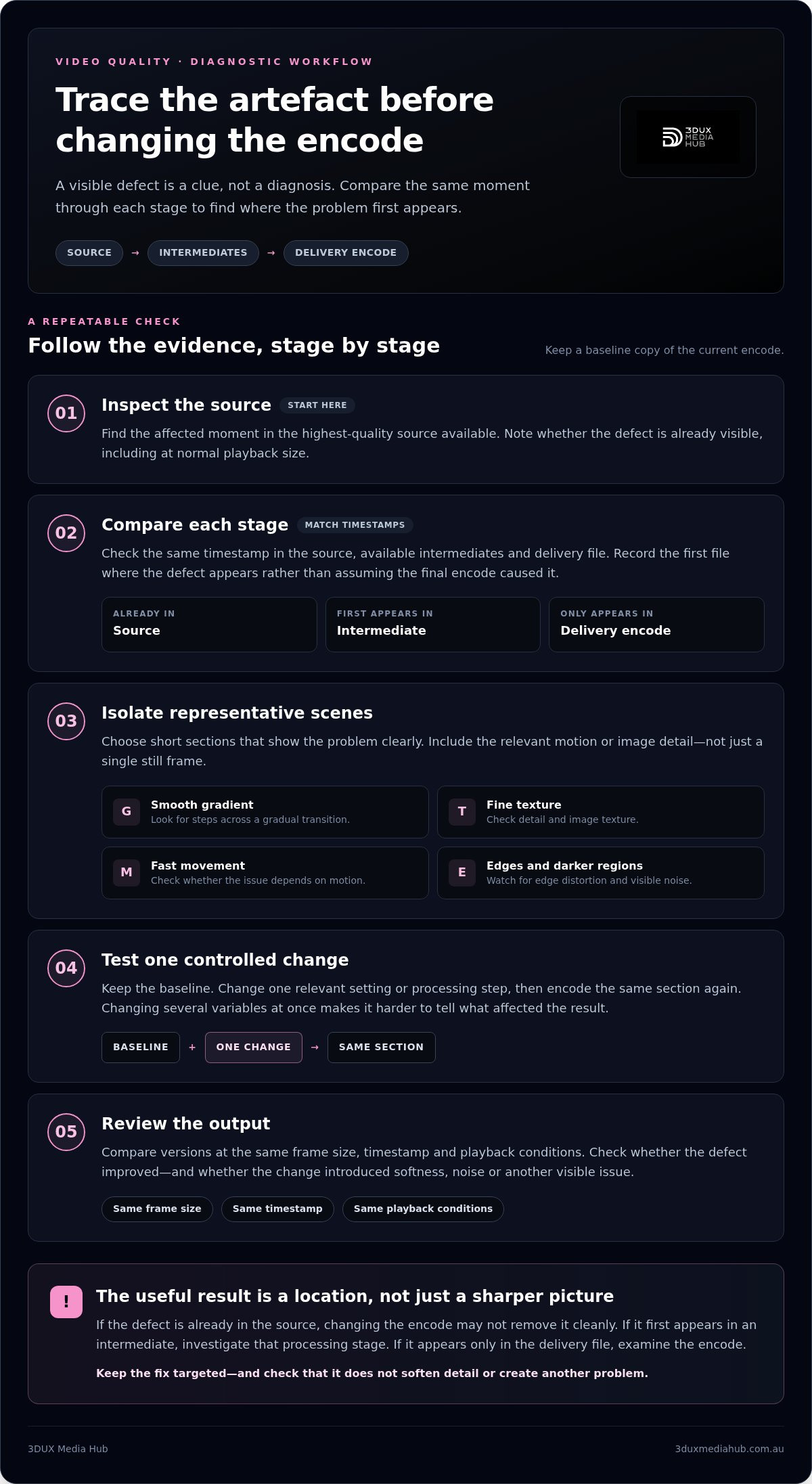
Use a repeatable check before adjusting the encode. It helps pinpoint whether a defect originates in the source, appears during processing or is specific to the delivery file. Keep a baseline copy of the current encode and follow the same sequence for each issue. A consistent comparison reduces the risk of fixing one scene at the expense of the rest.
Trace the defect through the source and processing chain
Start with the original source and compare it with each available intermediate, such as a mezzanine file, then the final encoded version. Use matching timestamps and note whether the issue persists throughout, occurs only in one scene, depends on motion or follows particular edges. If it first appears after a processing step, consider whether scaling, sharpening, denoising or standards conversion contributed.
- Inspect the source. Find the affected moment in the highest-quality source available. Record whether the defect is already visible, including at normal playback size.
- Compare each stage. Check the same timestamp in the source, intermediates and delivery encode. Note the first file in which the defect appears rather than assuming the final encode caused it.
- Isolate representative scenes. Choose short sections that show the problem clearly. Include the relevant motion or image detail, not just a single still frame.
- Test one controlled change. Keep the baseline encode, alter one relevant setting or processing step, then encode the same section again. Changing several variables at once makes it harder to identify which change affected the result.
- Review the output. Compare versions at the same frame size, timestamp and playback conditions. Check whether the defect improved and whether the change introduced softness, noise or another visible issue.
Build a repeatable test before adjusting the encode
Choose clips that challenge different parts of the image: a smooth gradient, fine texture, fast movement and a high-contrast edge. Keep the comparison conditions consistent, including frame size, playback display and exact timestamps. Pay particular attention to darker regions, where compression can make noise more noticeable. IEEE Xplore’s discussion of video compression effects provides relevant context.
Controlled A/B tests make cause and effect easier to assess because only one change separates the baseline from the test encode.
Once you’ve isolated the stage and confirmed that a change improves the difficult scenes, check that the result still suits the intended delivery path. Professional video encoding for global distribution connects encoding decisions with post-production and QC requirements. 3DUX Media Hub provides video encoding and quality control to support a structured review of complex delivery masters. This is a more reliable approach to dealing with video encoding artifacts than making broad adjustments without a baseline.
Which fixes work for different video encoding artefacts?
Choose a remedy for the defect you’ve confirmed, not for its label alone. The table is a starting point: causes can overlap, so test each change against an untreated reference and the source. A successful fix reduces the visible problem without sacrificing detail or introducing another one.
| Symptom | Likely cause | Possible response | Risk | Test required |
|---|---|---|---|---|
| Blocking in flat areas or motion | Compression struggling to represent the scene’s detail or movement | Review bitrate allocation and compression strategy for the affected content | More data may not help if the defect is already present upstream; a changed encode can affect other scenes | Compare the affected motion and flat areas with the source and baseline encode |
| Mosquito noise around edges | Compression artefacts clustered near high-contrast detail | Test a suitable compression adjustment; avoid automatic sharpening | Sharpening can exaggerate noisy edges and make the pattern more distracting | Inspect fine text and edges at normal viewing size and close up |
| Steps across smooth gradients | Limited tonal precision in the source or processing and compression stages | Review source handling; cautiously test subtle dithering where appropriate | Added noise may become visible or conflict with the source’s texture and delivery requirements | Compare gradients and shadow transitions with the untreated reference |
| Ringing or halos around detail | Prior sharpening, scaling or other edge processing | Inspect upstream processing before considering further edge adjustments | More sharpening can intensify halos; reducing it may soften the image | Check high-contrast edges and fine detail against the source |
Choose a targeted correction and understand its trade-offs
For blocking or mosquito noise, test encoding changes against the source rather than trying to make edges look crisper. Check whether fine texture survives and whether the adjustment affects other scenes. For banding, subtle noise or dithering can sometimes help smooth transitions, but test it only when it suits the source and intended delivery. If you see ringing or halos, investigate earlier sharpening and scaling first.
Keep the original master untouched. Each correction should be reversible, limited to the stage where it can help, and assessed across both the problem area and unaffected detail. An encode setting cannot reliably reconstruct source detail that has already been lost. It may change how remaining information is represented, but it cannot restore the original image with certainty.
When should you avoid filtering or re-encoding?
Hold off if the defect is already in the source and the proposed filter would only disguise it. Broad denoising can remove intentional grain, fine texture or low-contrast detail along with unwanted noise. Stacking filters can compound softness or create new edge and texture problems without addressing the cause.
Compare every proposed fix with an untreated reference at normal viewing size and under close inspection. A change that looks cleaner when enlarged may make the image feel unnaturally smooth in playback. When dealing with video encoding artifacts, the best correction is the least destructive one that resolves the visible issue while preserving the image’s intended character.
How to prevent artefacts in the next encode and verify the master
Set up a clean, repeatable encoding workflow
Preserve an untouched reference and record changes between versions, including scaling, frame-rate handling, sharpening, denoising or standards conversion. This creates a traceable path from source to master and makes it easier to identify when a new defect appears. Confirm that each processing step suits the intended delivery target rather than carrying forward settings by default.
Use short test encodes from demanding sections before encoding the full programme. Include material with gradients, fine detail, movement, high-contrast edges and shadow regions. A short test can reveal a weakness early, but it doesn’t replace a review of the completed file. Check that the encode handles each type of content acceptably, not just the scene that first raised concern.
Review the output before distribution
Inspect the actual delivery file, not only a preview encode or timeline monitor. Preview settings and playback conditions can differ from the final output, and defects may appear inconsistently across a programme. Review both difficult passages and ordinary scenes. A scene that seems clean in a still frame may show smearing or unstable detail in motion.
Play the file under conditions appropriate to its intended use, then examine individual frames where needed to assess a specific edge, gradient or shadow transition. Use the delivery specification as the reference for technical validation. Check that the encoded file matches the required format and other project requirements, then review the full programme for visual consistency. Structured Blu-ray quality control for film distribution can make output review part of the hand-off process.
A useful QC pass documents a review of the actual delivery file against its intended specification, alongside representative visual checks. Record what was reviewed, where issues were found and whether they were resolved. This gives the team a clear basis for approving the master and tracing later concerns.
When dealing with video encoding artifacts, prevention is a workflow, not a single setting: preserve the source, test processing choices, then verify the completed master. Encoding and QC support from 3DUX Media Hub can help prepare and review a distribution file.
When professional encoding and QC can help resolve persistent artefacts
A specialist review is useful when a defect survives controlled test encodes, affects a critical scene or appears to originate before the encode. It can help distinguish a source limitation from an issue introduced by processing, scaling or standards conversion, then assess which options suit the intended delivery. Not every defect can be reversed. The source’s condition and the severity of the damage determine what’s achievable, and aggressive correction may trade one visible problem for lost texture or detail.
For film and television delivery, 3DUX Media Hub combines video encoding with post-production and broadcast-quality QC. This connected workflow can help trace a persistent issue through the material, assess a targeted response and review the finished delivery file. The aim is a technically reviewed master that suits its distribution path, not a blanket promise that every source defect can be removed.
What a specialist review can contribute
Review starts with the visible symptom, the source condition and the processing history. A defect present in the source may need a different response from one introduced during scaling or encoding. Testing can focus on the affected passage while checking nearby detail for unintended softness, altered texture or new edge problems. Broadcast-quality QC helps identify whether issues remain in the completed delivery file, rather than relying on a preview or processing timeline alone.
Prepare the material for an efficient technical assessment
A clear hand-off gives the review a practical starting point. Supply the highest-quality source or mezzanine available, identify affected timestamps and describe what you see, such as blocking during motion or a halo around an edge. Include the current encode settings and note any processing already applied, particularly sharpening, denoising, scaling or standards conversion. This history helps distinguish an inherited defect from one introduced later.
Also state the intended distribution format and delivery requirements. A test should reflect the actual output, since a change that appears helpful in one encode may behave differently in another. Useful assessment material includes:
- The source or mezzanine and the affected timecodes.
- A brief symptom description, including whether it changes with motion or appears in specific scenes.
- Current encode settings and a record of processing or conversion steps.
- The intended distribution format and relevant delivery requirements.
With those details, testing can stay focused on the real delivery challenge. A source-aware review may show that an encode adjustment is suitable, that upstream post-production needs attention, or that the defect cannot be cleanly recovered. Each outcome supports a more informed decision about image quality and delivery expectations.
If persistent artefacts are affecting a master, discuss a video encoding project with 3DUX Media Hub. Its encoding, post-production and QC capabilities support a considered path from diagnosis to delivery review.
Carry a clearer picture into your next master
Use each completed delivery to build a practical reference for future versions. Record which image characteristics are intentional, which treatments were approved and what source limitations remain. That record helps protect the creative intent of the programme and gives the next team a sound basis for changes, rather than treating every visible irregularity as a defect to remove.
Good decisions also depend on the delivery context. A master prepared for one distribution path may face different technical requirements in another, so keep the intended use in view as the project develops. A source-aware workflow can help manage those requirements while recognising that not every artefact can be recovered without affecting the image.
For projects that need technical support, 3DUX Media Hub provides video and audio encoding across formats from SD to 4K, alongside post-production, standards conversion and broadcast-quality QC. If dealing with video encoding artifacts is holding up your next delivery, start a conversation about your video master.
Frequently Asked Questions
What causes video encoding artefacts?
Video encoding artefacts can result from compression, earlier image processing or limitations already present in the source. Compression may struggle with complex detail, film grain or rapid movement, while scaling and sharpening can alter edges before encoding begins. Look for clues in the affected content: defects clustered around moving texture may point to compression, while a flaw that stays fixed in the same source frame may pre-date the encode.
Can video encoding artefacts be completely removed?
Not always. If a defect is baked into the only available source, a later encode can’t reliably restore the original image information. Processing may make an artefact less noticeable, but it can also soften fine detail or change texture. The best outcome depends on the source and the defect’s severity. Preserve the cleanest available original, and judge any restoration against it rather than treating a smoother image as proof of recovered detail.
How do I fix blocking in an encoded video?
First check whether the blocks appear in the source or only after encoding. If they’re encode-related, test a revised compression strategy on the affected passage, particularly if it contains fast movement or busy texture. Compare the result with the original and inspect nearby fine detail. Don’t sharpen block edges: that can make them more conspicuous. If the blocks are already present in the source, changing delivery settings may have limited effect.
What causes banding in video, and how can I reduce it?
Banding appears when a smooth tonal change is represented as visible steps, often in skies, fades or dark gradients. It can stem from the source, processing or compression. Check the same gradient in the source and output first. If banding emerges later, test a small, controlled processing change. Subtle dithering may help in suitable cases, but it can add visible texture. Review the result on the intended display as well as frame by frame.
Is film grain an encoding artefact?
No, film grain isn’t automatically an artefact. It may be an intentional part of the image’s look, and removing it can make a film feel unnaturally smooth. Compression can, however, distort grain so it clumps, flickers or breaks up in motion. Compare the encoded texture with the source and consider the creative intent before applying denoising. A clean-looking frame isn’t necessarily a more faithful one.
What happens if I keep re-encoding a video with artefacts?
Repeated lossy re-encoding can compound image degradation because each generation may discard more visual information. Existing blocking, noise or softened detail can become more pronounced, even if the new settings differ. Avoid using a compressed delivery file as the starting point for another master if a higher-quality source or mezzanine is available. If another encode is necessary, work from the best source and inspect a short test before processing the full programme.
How can I check whether an encode has introduced a defect?
Compare the output with the source or mezzanine at the same timecode, using the same frame size and playback conditions. Check a passage where the suspected defect is easy to see, then inspect adjacent frames to learn whether it flickers or persists. If possible, compare an intermediate file too. A defect that first appears in the delivery encode points to a later stage, though the encode may also be emphasising a weakness in the source.